
Automatic Turkiye ID Checker Shopify App

AUTOMATED TURKISH ID VERIFICATION
Secure TCKN
Validation for
Shopify Store
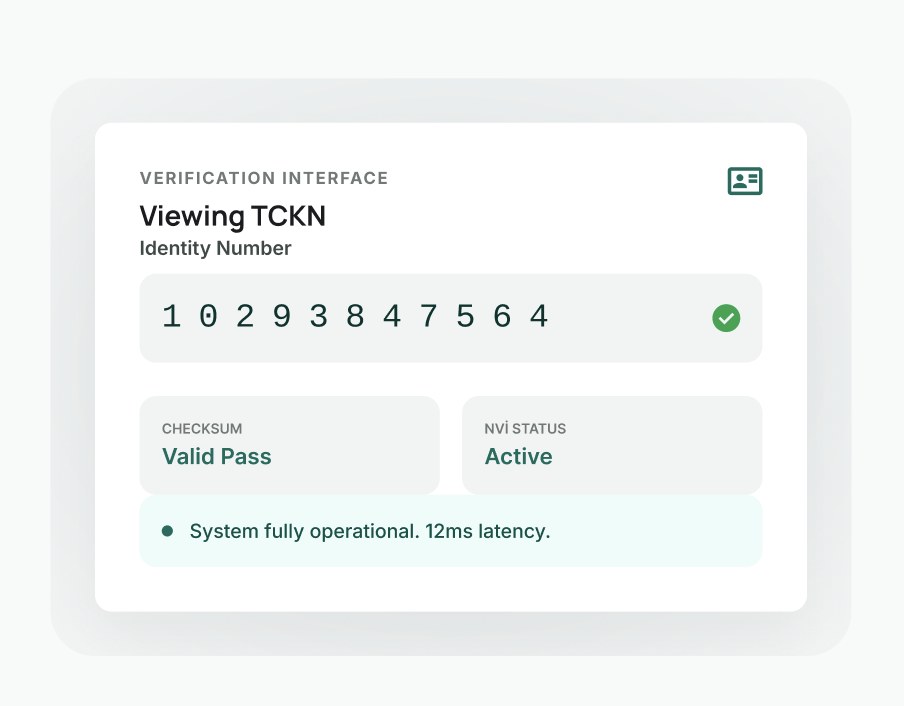
Verify Turkish National Identity Numbers instantly. Builded for compatibility, speed, and enterprise-scale integration.
Start Verifying Now
Quick Setup Guide
After installing the app, complete the following steps to make the TCKN field appear on the checkout page:
01
Checkout Settings
In the Shopify admin panel, go to Settings → Checkout. Click the Customize button at the top of the page. This will take you to the Checkout Editor.
02
Add Extension
In the Checkout Editor, click Add app block from the left panel. Find the TC Kimlik Numarası extension in the list and add it.
03
Set Position
The extension appears below the shipping address section by default. You can drag and drop to change its position. After finishing the settings, click the Save button in the top right.
How It Works?
1
Customer reaches checkout
When the customer proceeds to the checkout page to purchase items in their cart, the “Turkish ID Number” field automatically appears below the shipping address section.
2
TCKN is entered and validated
The customer enters their 11-digit Turkish ID Number. The app instantly validates the entered number using the official TCKN algorithm. Only numeric input is allowed.
3
Checkout is blocked if invalid
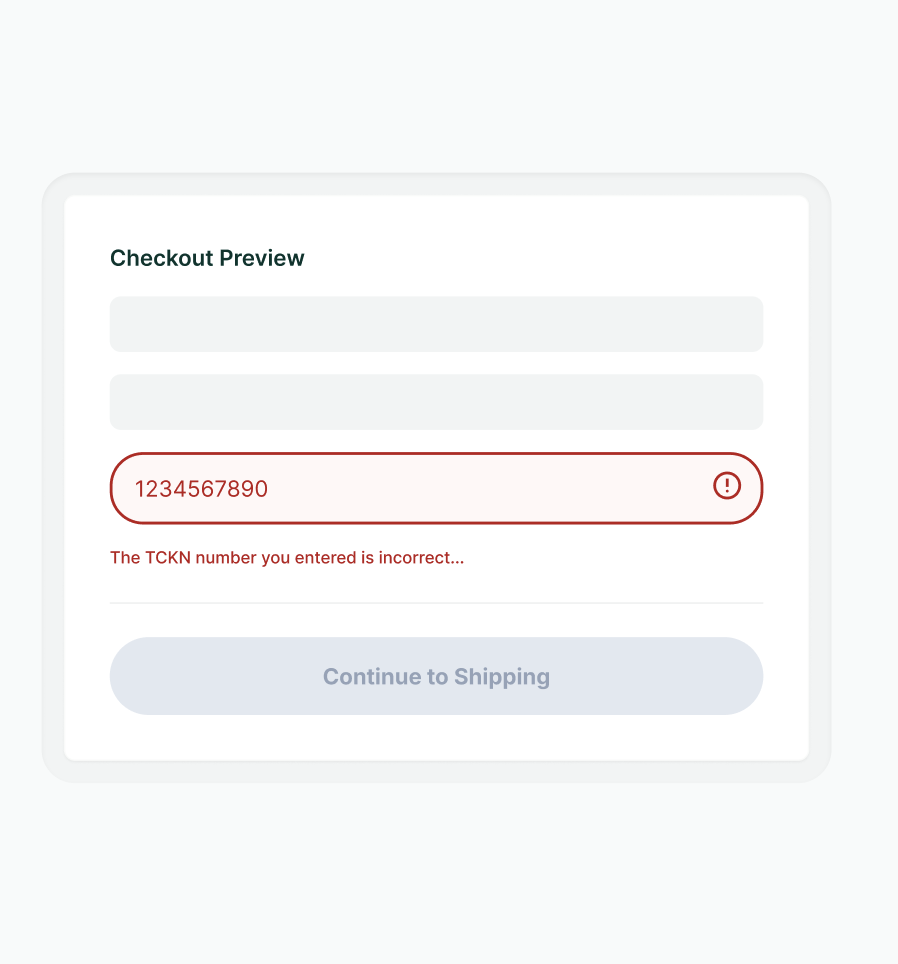
If the TCKN field is left empty or an invalid number is entered, the customer cannot proceed to the next step. They are informed with a red error message.
4
Saved to the order
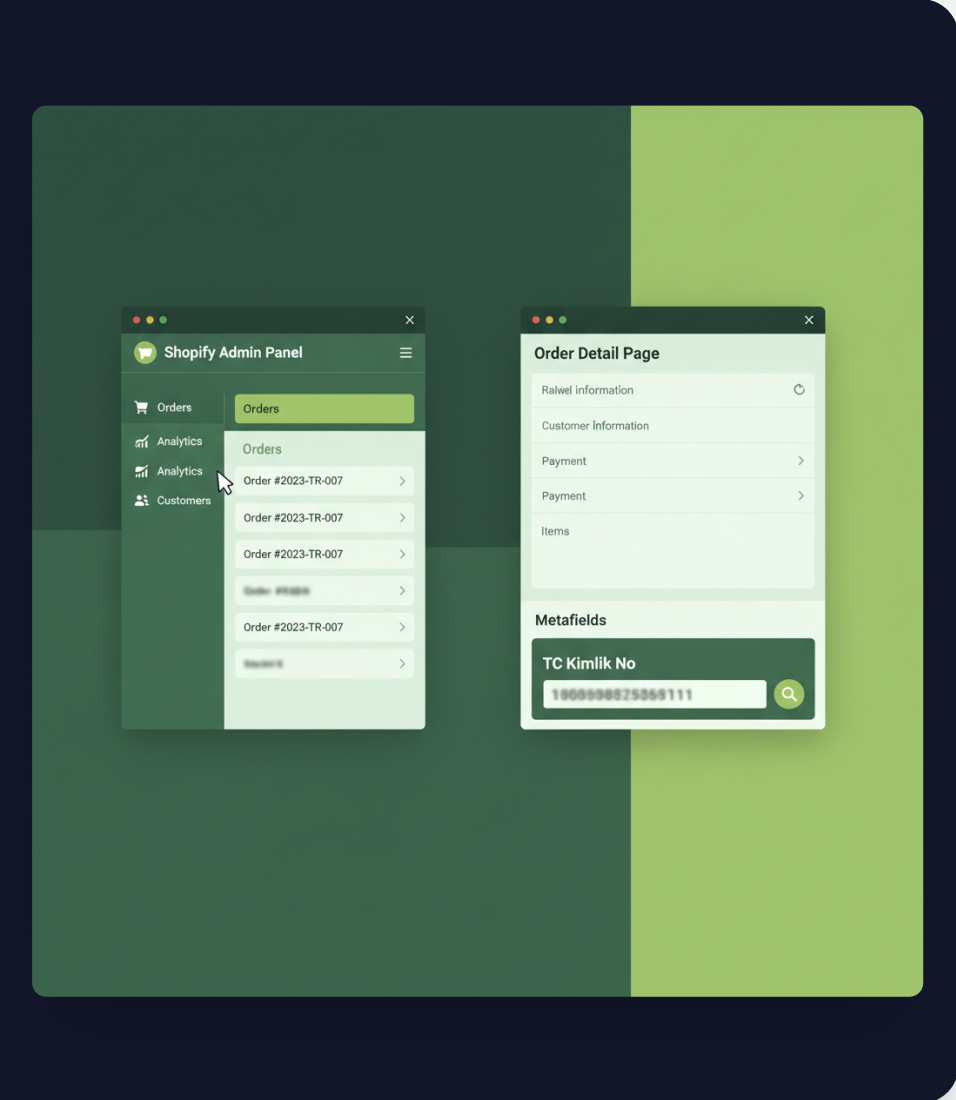
The valid TCKN is automatically saved to the order metafield. After the order is completed, you can view the TCKN information from the order details in the admin panel.
Validation Rules
-
Must be exactly 11 digits long.
-
Cannot start with a zero (0).
-
Algorithm-based checksum validation for digits 10 and 11.
-
Strict numeric-only input enforcement.
Error Messages
TRIGGER: WHEN THE FIELD IS LEFT EMPTY
“Please enter your Turkish ID Number”
TRIGGER: WHEN THE ALGORITHM CHECK FAILS
“Invalid Turkish ID Number”
TRIGGER: WHEN INSUFFICENT DIGITS ARE ENTERED
“Turkish ID Number must be 11 digits”
Viewing TCKN in Order Details
The Turkish ID Number entered by the customer is automatically saved to the order information when the order is completed. To view the TCKN information:
1. Go to the Orders page in the Shopify admin panel.
2. Click on the relevant order to open the detail page.
3. At the bottom of the order detail page, in the Metafields section, you will see the “TC Kimlik No” field.
 Pro Tip: Metafields
If the metafield information is not visible on the order
detail page, check that the “TC Kimlik No” metafield
definition exists under
Settings → Custom data → Orders.
This app automatically creates this definition the first time
it is opened.
Frequently Asked Questions
The TCKN field is not showing on the checkout page. What should I do?
Go to the Checkout Editor and check that the extension is added and active. Make sure you clicked the “Save” button after adding the extension. Also remember that your store must be Shopify Plus or a Development Store.
Which algorithm does the TCKN validation use?
The app uses the official TCKN validation algorithm used by the Republic of Türkiye General Directorate of Population and Citizenship Affairs. This algorithm includes validating the 10th and 11th digits as check digits.
What happens if the customer enters an invalid TCKN?
When the customer enters an invalid or incomplete Turkish ID Number, a red error message is displayed on the checkout page and they are prevented from proceeding to the payment step. The order cannot be completed without entering a valid TCKN.
Where is the TCKN information stored?
The TCKN information is stored in the order metafield (namespace: “tckn”, key: “tc_kimlik_no”). You can access this information from the order detail page, via the Shopify API, or through order exports.
Can I temporarily disable the extension?
Yes. Go to the Checkout Editor, remove the Turkish ID Number extension, and save. When you want to activate it again, you can add it back with the same steps. You do not need to uninstall the app.
Ready to secure your onboarding?
Join 500+ Turkish businesses automating their identity verification
flow today.
Start Verifying Now